What is it?
Time-lapse videos are essentially either a collection of pictures put together to create a quick video or a video that is sped up. The goal is to show a long period of time in a very short period of time. This is an amazing tool for educators as it can be used for so many different experiments and activities in the classroom.
There are a variety of ways to create time-lapse videos. Some will create videos for you. Some will take a group of pictures for you that you will then have to transfer into a video editing program and create a video for yourself. My hope is to provide you with some of the different options so that hopefully you can find one that works for you!
For those of you who follow my class blog, you’ve seen a couple different videos that we’ve done using the document camera. You can find them down below in the example section. We have an Elmo document camera that has a time-lapse feature as part of the ImageMate software that comes along with it. The best part about it, as you can see in the first tutorial video, is that all you have to do is set how often you’d like the document camera to take pictures and then leave it for as long as you’d like it to take pictures for. Once finished, it puts all the images together in a video for you. For my videos, I then just imported that into my video editing software and added a little music to it!
I know many of you probably don’t have an Elmo document camera though. However, many of you probably have access to an iPhone or iPad! There are many great apps that you can use for time-lapse videos (most are paid apps). TimeLapse and Quick Lapse HD are a couple of those apps. TimeLapse comes as a paid app. Quick Lapse HD begins as a free app but you must purchase extra time in the app if you’d like to make a longer video. Both are very simple to use and allow you to save the video to your phone which you could then upload to a site like YouTube. Personally, I prefer TimeLapse. The settings are very easy to manage. It allows you to set how long you’d like to record for as well as how long you’d like the video to be. It also allows you to choose a song from your library to play along with your video.
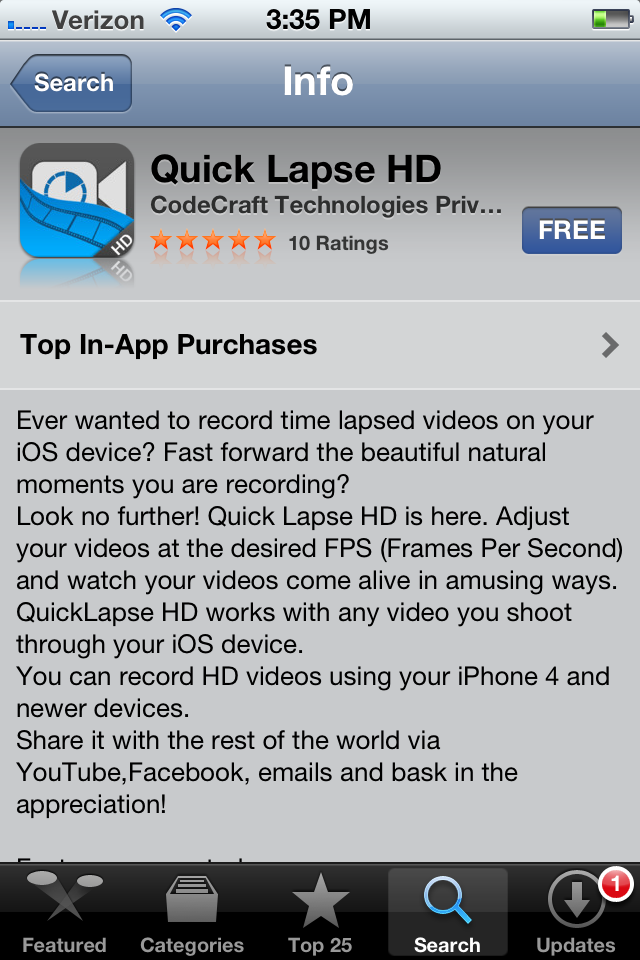
Quick Lapse HD
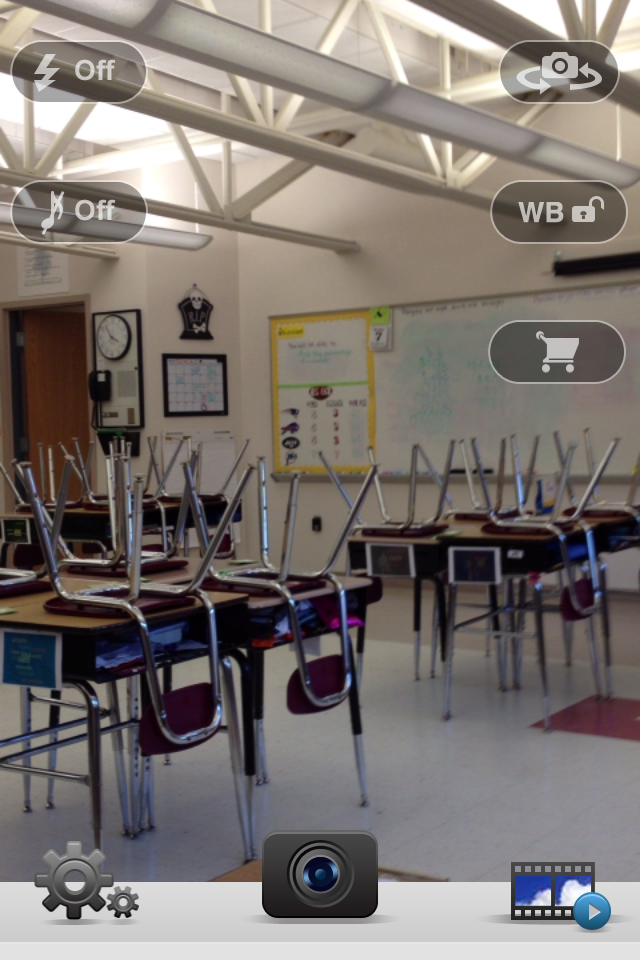
Quick Lapse HD Video
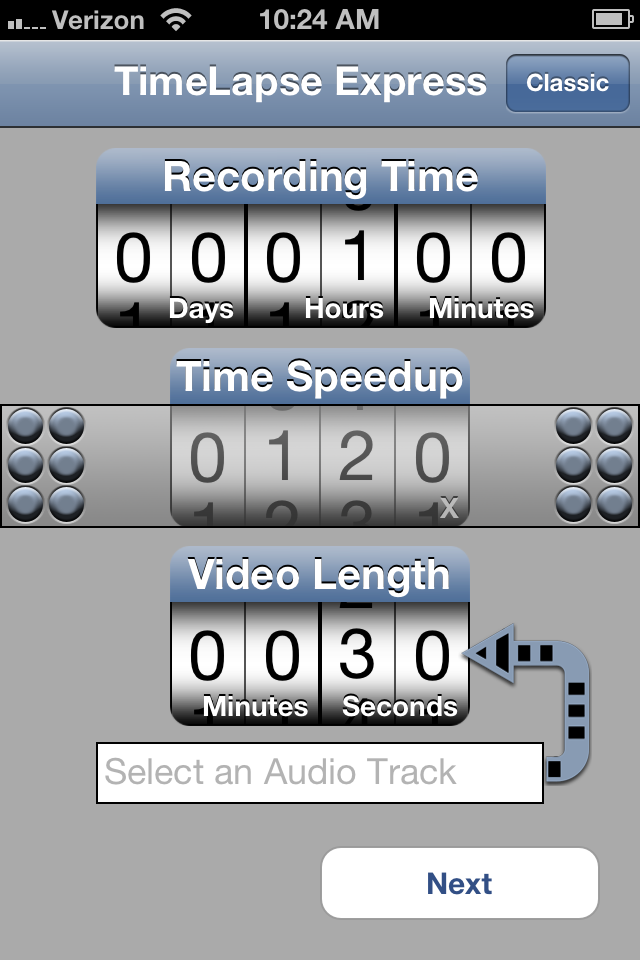
TimeLapse Settings
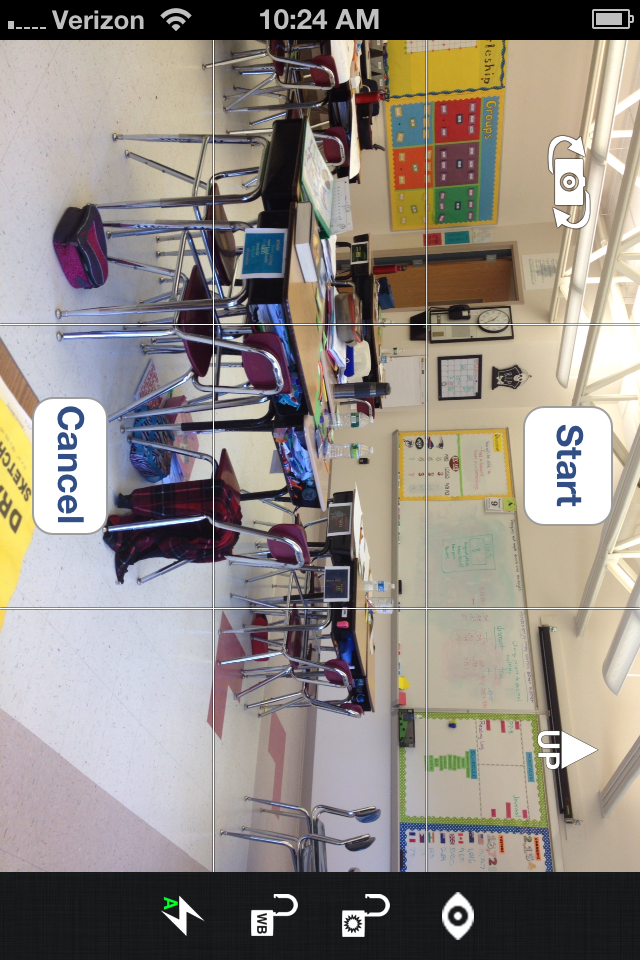
TimeLapse Video
If you don’t have access to any of the items mentioned so far but you have a computer running Windows XP and a webcam, you can also use WebCam Timershot. Webcam Timershot allows you to set up a webcam on your computer to take pictures at whatever increments you would like. The only issue with this software is that it only saves the pictures, which means that you then have to import all the pictures into your video editing software and create the video yourself.
If you have a Mac (which I don’t unforunately), you may also want to look into Gawker. This is a free program for Mac OS that allows you to use your webcam to create time-lapse videos. It even allows you to have a video showing four locations at the same time!
Video Tutorials
In the two videos today, I’ll be sharing how to use the Elmo ImageMate software as well as the WebCam Timershot program. The first video will cover the Elmo, the settings, and how to use it. The second will cover how to install, setup, and use the WebCam Timershot software. Of course, as always, if you ever have any questions about anything you see in the tutorials, just ask!
Examples
We’ve created a couple time-lapse videos for our classroom. For the first, we had the document camera take pictures of our entire day so that we could look back and see what a day in our room looked like. Unfortunately, because the software was tied in to our laptop, we weren’t able to use our smartboard that day though! Our second video was a time-lapse video of a Technology Night that we hosted for sixth grade students and parents. Parents had no idea we were recording them and then we surprised them with our video at the end!
Application in Class
There are so many amazing uses for time-lapse videos in the classroom. To begin, it’s just fun to be able to look back and see your entire day in such a short period of time. Students love seeing things randomly change, watching the hands on the clock fly around, and seeing what they did throughout the day. It’s also great to be able to go back and watch yourself during a lesson to see how you taught and reacted to students without having to watch through 45 minutes or an hour of video!
There are also a lot of educational uses. If you’re teaching about plants, you could setup a time-lapse video over the period of a couple of weeks to watch a plant grow. You could also watch things like mold grow as well. If you have a class pet, you could take a video of that pet after you leave the classroom so students can see what it does after they leave everyday. You could also set the camera on a puddle to watch it and learn about evaporation as seen in this video. For younger grades, you could record a video of outside your classroom over the course of a day to talk about time. Or, if you have a day that starts out raining and then changes to sun, you could create a video to spark discussion about weather. If you’re really ambitious, you could even take a picture of the same spot outside over the course of the school year that you could use as a video to talk about seasons.
Those are just a few of the many ways that you could use a time-lapse video in the classroom. If you have any other suggestions, I’d love to hear about them in the comment section!
Resources and Links
*How have you created a time-lapse video before?*
*What other suggestions do you have for ways to use a time-lapse video?*